> For the complete documentation index, see [llms.txt](https://doc1.antgst.com/llms.txt). Markdown versions of documentation pages are available by appending `.md` to page URLs; this page is available as [Markdown](https://doc1.antgst.com/help-center/voice/voice-bulk-call.md).
# Voice bulk Call
*Voice bulk calling is an efficient communication service that leverages automation to batch dial users, play voice messages, and support interactive feedback. It is widely used for notifications, customer service, and marketing promotions.*
***
### Create Task
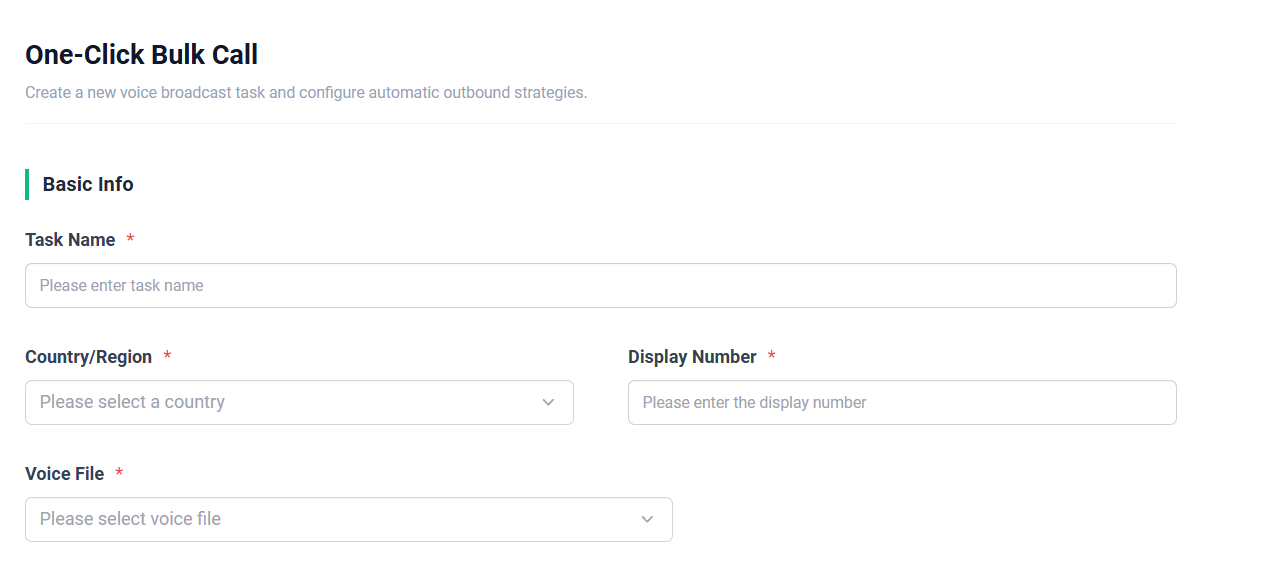
#### Base Info
**Display Number**: The calling number used when making the task call.
**Voice File**: The IVR voice file used after the task call number is dialed, for playing the voice content.
#### Add Callee
You can add the called number by uploading a file or by manually entering it.
**Upload File**
If you use the uploaded number file, you can first click on **Download Import Template** to obtain the template for uploading numbers. The default template used is xlsx.
{% stepper %}
{% step %}
### xlsx / xls file
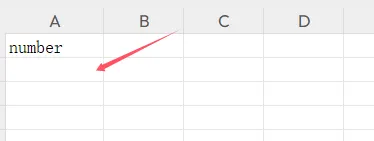
First, you need to enter the word "number" in the first cell of the first row as the column name. Then, start entering the numbers from the second row of the first column, one number per row. As shown in the figure below.
{% endstep %}
{% step %}
### txt file
Start writing from the first line, with one number per line.
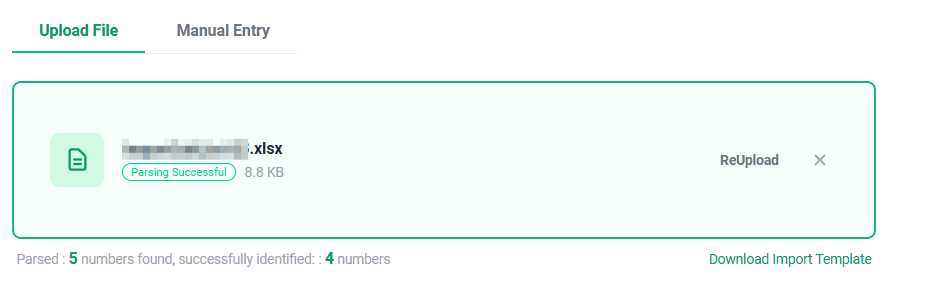
After the file is imported, the specific results of the import will be displayed, as shown in the following figure. Only the numbers that meet the requirements can be used as the called numbers.
{% endstep %}
{% endstepper %}
**Manual Entry**
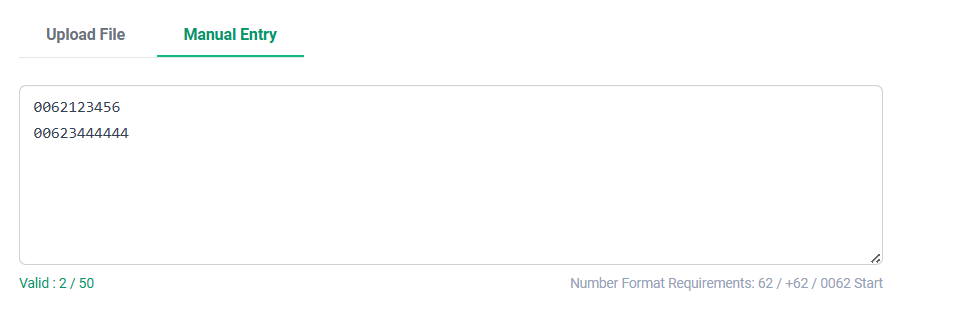
Manually enter the called number. This is suitable for test scenarios with a small number of numbers. Up to 50 numbers can be entered. For cases with a large number of called numbers, it is recommended to use file import.
Take Indonesia as an example. The format requirement is one number per line.
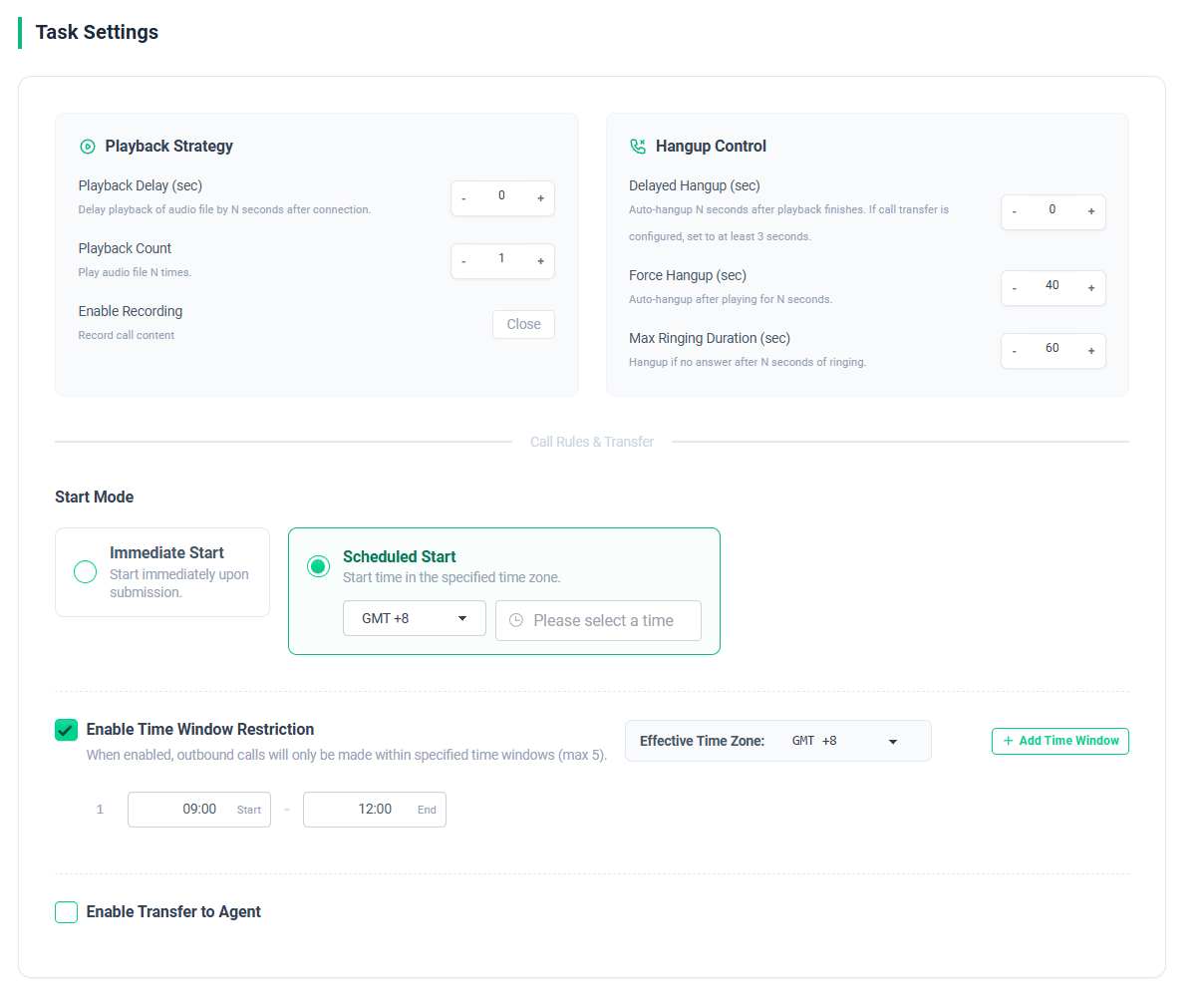
#### Task Settings
* **Playback Delay:** Delay the playback time of the IVR file. The default is 0 seconds.
* **Delayed Hangup:** The default duration is 0 seconds, meaning that the call will be disconnected immediately after the IVR file content is played. If you need to configure a user transfer button later, you will need to make adjustments. It is recommended to set it to more than 3 seconds to give the customer sufficient time to press the button.
* **Playback Count:** The number of times the IVR file is played. The default is 1 time, with a maximum of 3 times.
* **Enable Recording:** Choose whether to enable call recording.
* **Force Hangup:** It refers to the maximum duration limit for each IVR interaction with the user during an outbound call. Once the call duration reaches the preset "forced hang-up time" (such as 30 seconds, 60 seconds, or 120 seconds), regardless of whether the voice content has been fully played or the user is still listening, the system will automatically end the call and hang up to prevent the call from occupying the line indefinitely. This does not include the call time after transfer to an agent.
* **Max Ringing Duration:** If the ringing duration exceeds the set maximum ringing duration, the call will be automatically hung up.
* **Calling method:** 1. Call immediately. 2. Delayed call. When set to delayed call, the call will only start when the specified time is reached.
* **Time-based call:** You can choose to make calls at different time periods.
{% hint style="danger" %}
Note: There must be at least a 5-minute interval between each time period.
{% endhint %}
* **Transfer to Agent:** It is set to be in the off state by default.
* **Call Ratio:** The call ratio setting can be calculated as Call Ratio = 1 / Connection Rate. You can contact the business support team to configure the value of this parameter.
* **Transfer Conditions:** When the user presses the button, they will be transferred to the agent in the configured agent group.
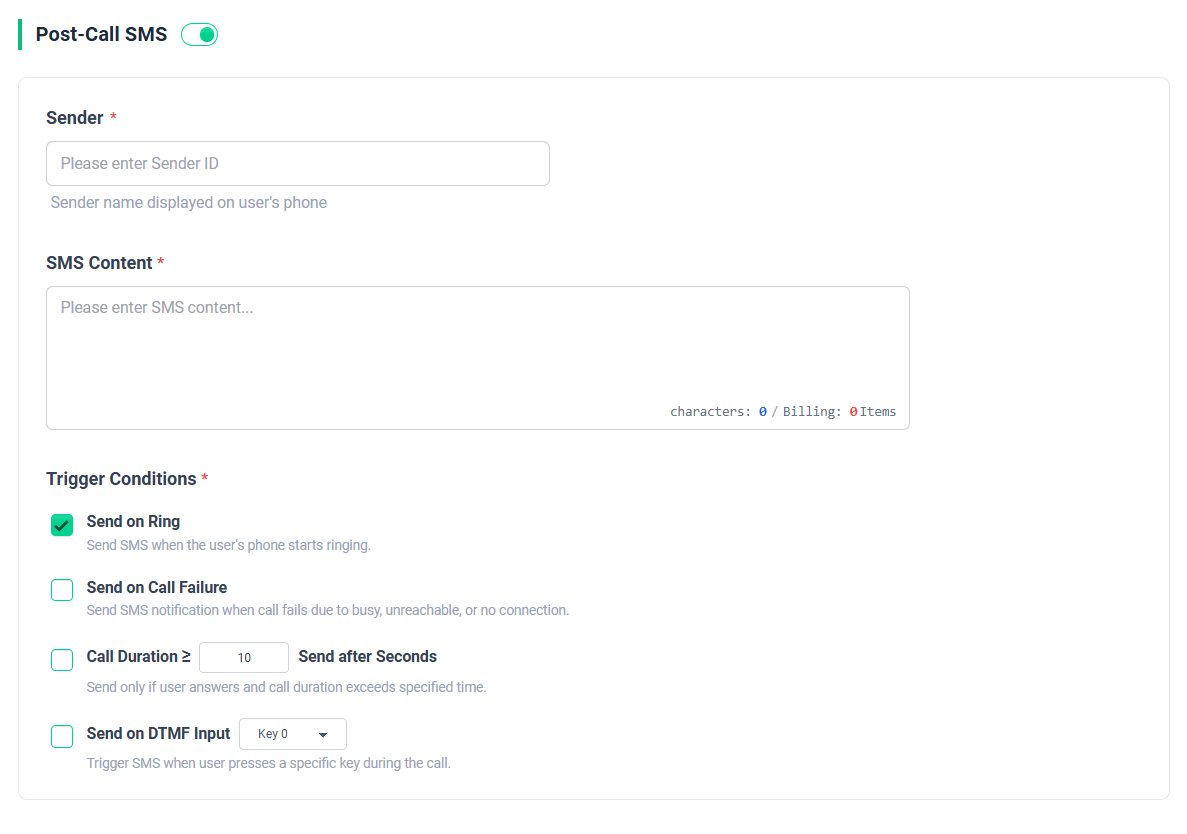
Post-Call SMS Setting
It is set to be in an enabled state. When the triggering conditions for the idle message are met, a message will be sent to the user.
### Task Detail
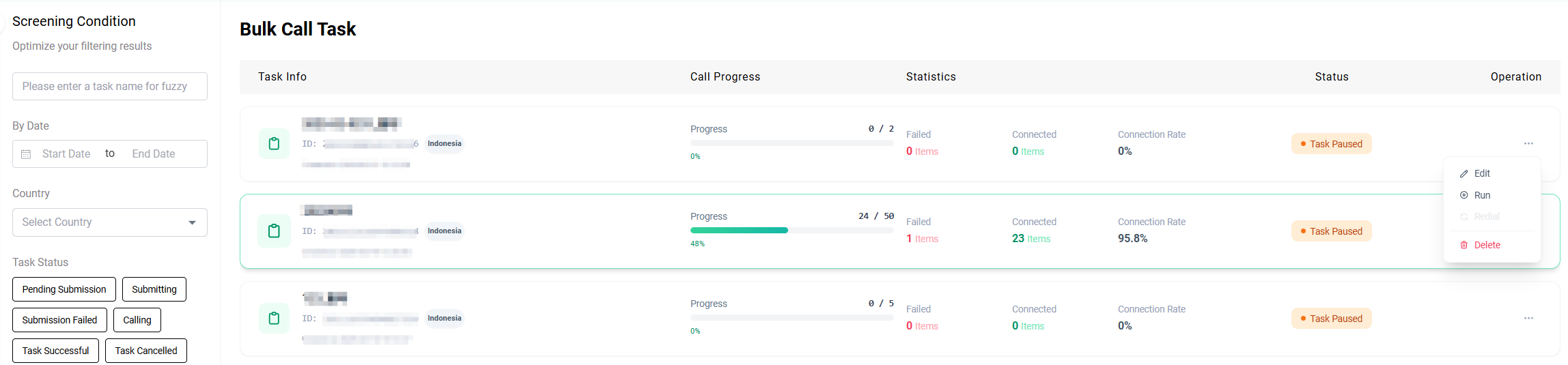
Bulk Call Task List
***
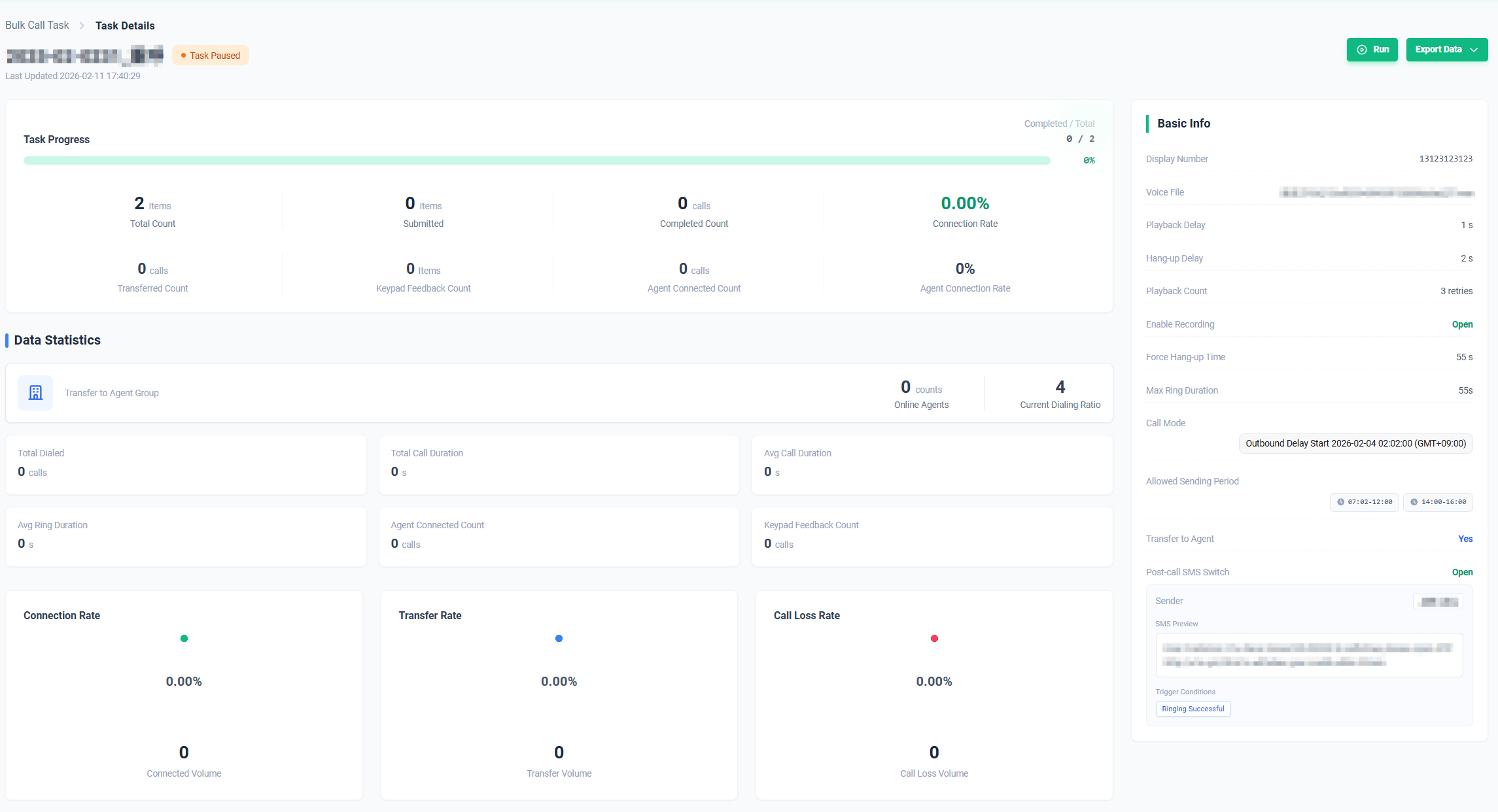
* **Total Quantity:** Indicates the number of called numbers in the task.
* **Submitted Number:** Shows the number of numbers that have been submitted for calling in the task.
* **Completed Number:** Indicates the number of calls that have been completed.
* **Transfer Number:** If group call transfer to agent is configured, it displays the number of attempts to transfer to the agent.
* **Key Press Feedback Number:** If key transfer is configured, it shows the number of successful key transfer operations by the user.
* **Agent Connect Number:** Indicates the number of calls transferred to the agent and successfully connected by the agent.
* **Call Loss:** Includes the number of calls that failed due to other abnormal reasons such as agent busy, network anomaly, invalid numbers, etc.
* **Transfer Volume:** The number of transfers by the agent.
* **Failure Number:** Includes the number of users who refused, were busy, were unreachable, etc., resulting in the inability to receive calls normally.
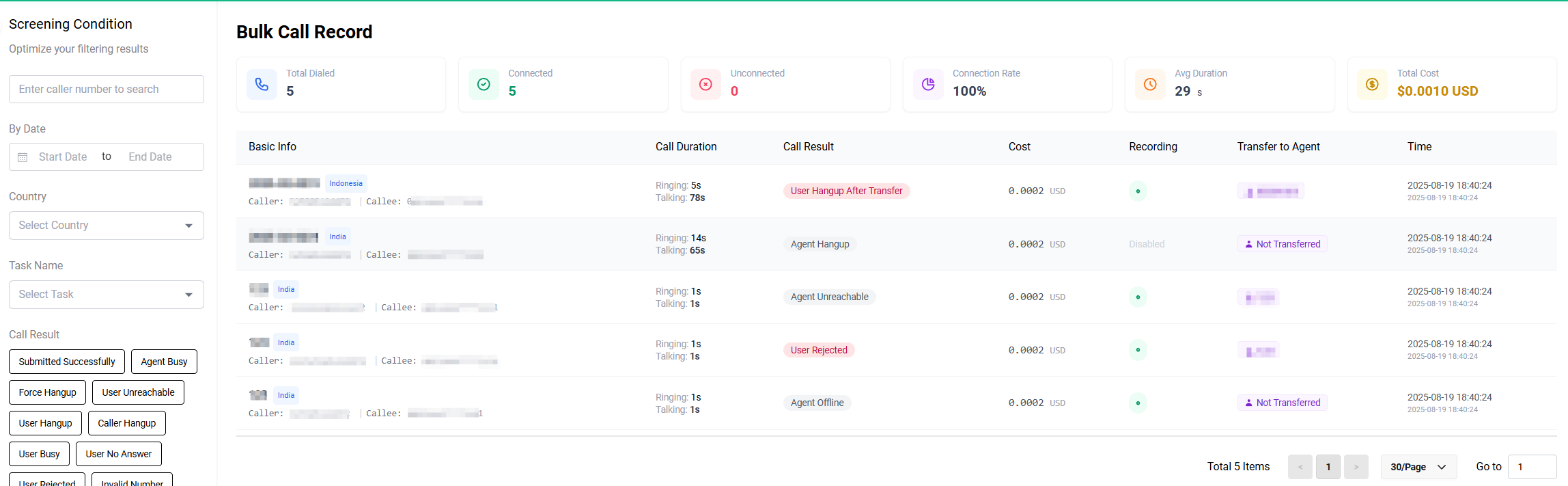
### Call Record
***Call Result***
* **Submitted Successfully:** Indicates that a call has been initiated for the user.
* **Agent Busy:** The current call has failed due to no available agent.
* **Force Hangup:** The current call has reached the configured forced hangup time, resulting in the automatic end and hangup of the call.
* **User Unreachable:** Call failure due to network/user status issues.
* **User Hangup:** The user answers and then hangs up.
* **Caller Hangup:** The call is automatically ended and hung up after the playback of the voice file is complete.
* **User No Answer:** The user does not answer until the ringing duration exceeds the configured maximum ringing duration.
* **User Rejected:** The user rejects the call after receiving it.
* **Agent Hangup:** The agent answers and then hangs up voluntarily.
* **Agent No Answer:** The agent does not answer until the ringing duration exceeds one minute.
* **Agent Rejected:** The agent rejects the call after receiving it.
* **Agent Unreachable:** Call temporarily unattainable due to network or agent issues.
* **Agent Offline:** The agent is not logged in and online.
* **User Hangup After Transfer:** The user hangs up voluntarily after the agent connects.
* **User Call Failed:** Call initiation to the user fails.
* **Transfer Call Failed:** Call initiation to the agent fails.
---
# Agent Instructions
This documentation is published with GitBook. GitBook is the documentation platform designed so that both humans and AI agents can read, navigate, and reason over technical content effectively. Learn more at gitbook.com.
## Querying This Documentation
If you need additional information that is not directly available in this page, you can query the documentation dynamically by asking a question.
Perform an HTTP GET request on the current page URL with the `ask` query parameter, and the optional `goal` query parameter:
```
GET https://doc1.antgst.com/help-center/voice/voice-bulk-call.md?ask=&goal=
```
`ask` is the immediate question: it should be specific, self-contained, and written in natural language.
`goal` is optional and describes the broader end goal you are ultimately trying to accomplish on behalf of the user. GitBook uses it to tailor the answer towards what is most useful for that goal.
The response will contain a direct answer to the question and relevant excerpts and sources from the documentation.
Use this mechanism when the answer is not explicitly present in the current page, you need clarification or additional context, or you want to retrieve related documentation sections.